
Smartphones are a big part of our daily lives. These days, we spend a lot of time on our phones—for work, study, or fun. But too much screen time can affect our health and daily routine. That’s why it’s important to keep track of how much time we spend on them, so we can maintain a healthy balance.
Did you know that as of 2025, the global average screen time across all devices stands at a staggering 6 hours and 45 minutes per day, with smartphones alone accounting for 4 hours and 37 minutes?
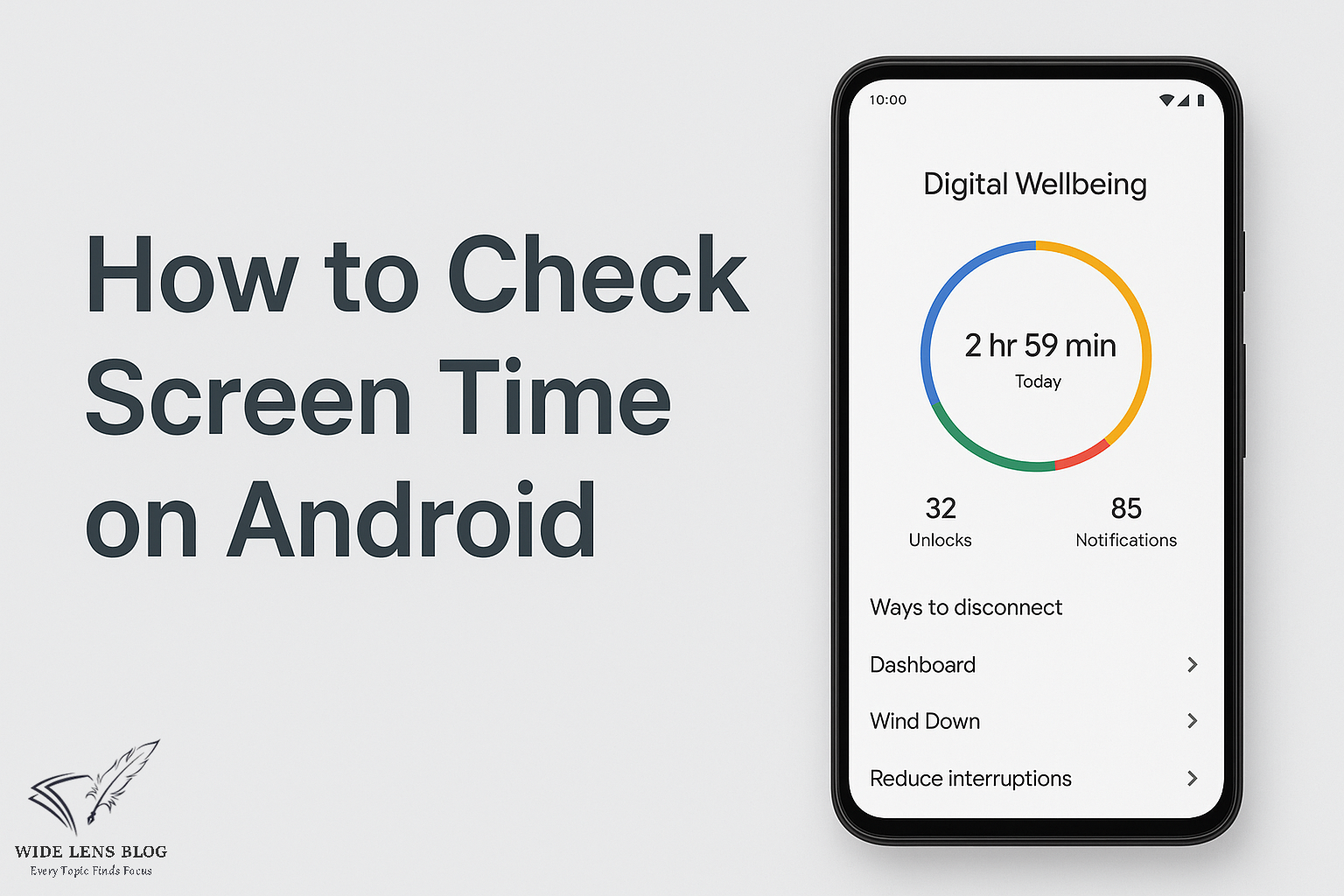
Android phones come with a built-in feature called Digital Wellbeing that helps you track and manage screen time easily. In this blog, we’ll explore How to Check Screen Time on Android, why it matters, useful apps, tips for healthy habits, common fixes, and FAQs.
No matter if you have a Google Pixel, Samsung Galaxy, or another Android phone, this guide will show you how to take control of your screen time.
Why Track Screen Time?
Tracking screen time helps you understand your phone habits and use your device more wisely. Here’s why it’s important:
Better Digital Health:
Too much phone use can affect sleep, productivity, and strain your eyes. Tracking helps you notice overuse and set limits. Studies show that teens with over 4 hours of daily screen time have a 50% higher risk of sleep disturbances.
Boost Productivity:
Knowing which apps take most of your time lets you focus on important tasks and cut down on distractions like endless social media scrolling.
Improve Mental Health:
Using your phone too much can increase stress and anxiety. Monitoring screen time encourages mindful usage. A 2025 randomized controlled trial found that reducing smartphone screen time to under 2 hours per day significantly improved mental health indicators, including reduced anxiety and better emotional well-being.
Encourage Healthy Habits:
Parents can track kids’ screen time to make sure apps and games are age-appropriate.
Save Battery:
High screen time can drain your battery. Tracking helps you spot power-hungry apps and adjust settings.
Stay Accountable:
Setting daily limits (like under 2 hours for leisure apps) helps maintain balance and self-discipline. Health experts recommend limiting recreational screen time to under 2 hours per day to mitigate risks like obesity and heart disease.
By checking your screen time regularly, you can take control of your digital life and use your phone in a healthy, balanced way- especially when the average American checks their phone 144 times daily.
How to Check Screen Time on Android
Most Android devices running Android 9 (Pie) or later have a built-in tool called Digital Wellbeing & parental controls that helps you track screen time. Here’s how to use it:
Prerequisites
- Android Version: Make sure your phone is Android 9.0 or higher (Settings > About phone > Android version).
- Permissions: Allow usage access for accurate tracking (Settings > Apps > Special app access > Usage access).
- Availability: Digital Wellbeing is usually pre-installed. If not, download it from the Google Play Store.
Steps for Stock Android (Google Pixel, Android 14/15)
- Open Settings:
- Tap the gear icon from the home screen or app drawer, or swipe down twice for Quick Settings and tap the gear.
- Locate Digital Wellbeing:
- Scroll to Digital Wellbeing & parental controls. Use the search bar in Settings if needed.
- Access the Dashboard:
- Tap Dashboard (often the default view). A pie chart displays daily screen time by app.
- View Total Screen Time:
- At the top, see “Screen time” (e.g., “3h 15m today”) for total screen-on time since midnight.
- Below, check unlocks, notifications, and app-specific usage.
- Explore Details:
- Tap the chart for hourly breakdowns or switch to weekly/monthly views for trends.
- Tap an app (e.g., YouTube) for detailed usage graphs.
| Manufacturer | Key Differences | Steps |
| Samsung Galaxy (One UI 5+) | Integrated with Device Care. Found on S-series, A-series, etc. | 1. Open Settings. 2. Tap Digital Wellbeing and parental controls (under Battery and device care). 3. View Dashboard for screen time. Alternative: Check Device Care > Phone usage. |
| OnePlus (OxygenOS) | Similar to stock, with Zen Mode integration. | 1. Settings > Digital Wellbeing. 2. Check Dashboard for screen time. |
| Other (Motorola, Xiaomi) | May require enabling usage access. | 1. Enable in Settings > Apps > Special app access. 2. Follow stock steps. |
Note: For older devices without Digital Wellbeing, use Settings > System > Developer options > Running services (enable Developer Options by tapping Build number 7 times in About phone), but this is less user-friendly.
How to Check Screen Time on Android Using Third-Party Apps
If your phone doesn’t have Digital Wellbeing or you want more features, you can use third-party apps to track screen time. Here are some popular options:
1. RescueTime
- What it does: Tracks app and website usage, shows productive vs. distracting activities, and works across multiple devices.
- How to set up: Install from Google Play Store, give usage access, and sign in.
- Best for: Professionals who want detailed productivity insights.
- Cost: Free, with premium features at $6/month.
2. Screen Time
- What it does: Shows daily/weekly reports, lets you set app limits, and includes parental controls.
- How to set up: Install, give permissions, and view usage in a simple dashboard.
- Best for: Families or casual users.
- Cost: Free, with in-app purchases.
3. ActionDash
- What it does: Similar to Digital Wellbeing, adds deeper analytics like session lengths, and works on older Android phones.
- How to set up: Install, enable usage access, and explore detailed charts.
- Best for: Users with older phones or those who want exportable data.
- Cost: Free, with premium features for $4.99 one-time.
How to Use Screen Time Data Effectively
Once you have screen time data, use it to optimize your digital habits:
- Set App Limits:
- In Digital Wellbeing, tap App timers (hourglass icon) next to an app. Set daily limits (e.g., 1 hour for Instagram). Apps gray out when limits are reached.
- Example: Limit gaming apps to 30 minutes to reduce procrastination.
- Enable Bedtime Mode:
- Go to Digital Wellbeing > Bedtime mode. Schedule Grayscale and Do Not Disturb (e.g., 10 PM–7 AM) to reduce nighttime usage.
- Benefit: Improves sleep quality by minimizing blue light exposure.
- Use Focus Mode:
- Select distracting apps (e.g., social media) in Focus mode and pause them during work hours.
- Schedule focus sessions for consistent productivity.
- Analyze Trends:
- Switch to weekly/monthly views in Dashboard to spot patterns (e.g., high usage on weekends).
- Adjust habits based on spikes (e.g., reduce YouTube if it dominates).
- Parental Controls:
- Use Google Family Link to monitor kids’ screen time, set limits, and approve apps remotely.
- Example: Restrict gaming to 1 hour daily for children.
- Correlate with Battery:
- Check Settings > Battery > Battery usage alongside screen time to identify high-drain apps and optimize settings.
- Set Goals:
- Aim for under 2 hours of recreational screen time daily (per health guidelines). Use data to track progress.
- Example: If social media takes 3 hours daily, gradually reduce to 1.5 hours over two weeks.
Common Challenges and Solutions
- Challenge:Inaccurate Screen Time Data
- Issue: Dashboard shows lower-than-expected times or misses apps.
- Solution:
- Ensure usage access is granted (Settings > Apps > Special app access > Usage access).
- Restart the device to refresh tracking.
- Update to the latest Android version via Settings > System > System update.
- Challenge: Digital Wellbeing Unavailable
- Issue: Older devices or custom ROMs lack the feature.
- Solution:
- Install ActionDash or Screen Time from the Play Store.
- Alternatively, use Developer Options (Running services) for basic stats.
- Check for Digital Wellbeing in Play Store updates.
- Challenge: Difficulty Reducing Screen Time
- Issue: Users struggle to stick to app limits or reduce usage.
- Solution:
- Start with small limits (e.g., 10% reduction) and gradually increase.
- Enable Grayscale in Bedtime mode to make apps less appealing.
- Replace phone use with offline activities (e.g., reading, exercise).
- Challenge: Notifications Bypassing App Limits
- Issue: Apps send frequent notifications, tempting users to exceed limits.
- Solution:
- Go to Settings > Notifications and disable notifications for distracting apps.
- Use Focus mode to pause notifications during specific hours.
- Enable Do Not Disturb for uninterrupted focus periods.
- Challenge: Inconsistent Tracking Across Apps
- Issue: Some apps (e.g., split-screen or picture-in-picture) may not track accurately.
- Solution:
- Update Digital Wellbeing via Play Store to ensure compatibility.
- Use third-party apps like ActionDash, which handle complex usage scenarios better.
- Avoid split-screen for critical apps to ensure accurate tracking.
Frequently Asked Questions
Q1. Can I track screen time on older Android phones (before Android 9)?
Ans. Yes, but Digital Wellbeing might not be available. You can use third-party apps like ActionDash or enable Developer Options for basic stats.
Q2. Does Digital Wellbeing share my data with Google?
Ans. No. Your usage data stays on your device unless you choose to sync it (like with Family Link). Always check permissions during setup.
Q3. How do I reset app timers?
Ans. Go to Digital Wellbeing > Dashboard, tap the hourglass next to an app, and choose Delete timer or set a new limit.
Q4. Can I track screen time on multiple devices?
Ans. Digital Wellbeing works per device. To track multiple devices, use apps like RescueTime with account syncing.
Q5. Why doesn’t my screen time match battery usage?
Ans. Screen time counts only active use, while battery usage includes background activity. Check Settings > Battery to compare.
Q6. How do I monitor my child’s screen time?
Ans. Use Google Family Link. Link their device, set limits, and view usage remotely.
Conclusion
Tracking screen time on Android helps you understand and manage your phone habits. Digital Wellbeing makes it easy to monitor usage, set limits, and improve your well-being. If your phone doesn’t have built-in tools, third-party apps like RescueTime or ActionDash are great alternatives.
By checking your screen time, setting goals, and fixing issues, you can maintain a healthy balance with your devices. Start today by opening Digital Wellbeing or installing a tracking app—your journey to mindful smartphone use begins now!